General
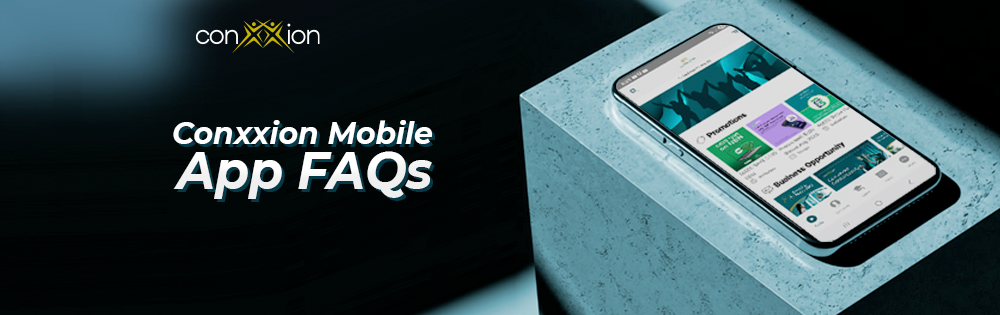
The myConxxion Mobile App is designed to help you manage and grow your IBO business on the go. Through the App, you can sign up new recruits, track your business activity, recognise team achievements, and access key tools and information.
It’s built to make running your business simpler, faster, and more convenient — putting your Conxxion business right in your pocket!
All IBOs will receive an email with instructions on how to access the myConxxion Back Office new systems and download the Mobile App. This email will include:
- Your registration link
- A unique first-time login code
- Step-by-step login instructions
- A Mobile App download guide
- Training videos and support resources
Please follow the instructions in the email to download the app and complete your first-time login.
The myConxxion Mobile App includes several tools to help you manage and grow your business:
Tools – Access marketing and training materials such as the Compensation Plan, product partner resources, news articles, guides and policies. You can also access links to enrol a new IBO and to your Business Website (storefront).
Contacts – Add new contacts manually or import contacts from your mobile phone. Once added, you can share marketing materials, training resources, or links such as the IBO enrolment page.
Learn – Access training courses, including accreditation training and myConxxion App training.
Feed – View notifications and updates, including shared content, reminders, news articles, and product updates.
Business – View key business information such as your Downline Reporting, Personal Customer List (PCL), and business calendar.
Settings – Manage app preferences, including notification settings, templated messages, clearing cache, and logging out.
My Profile – View your account information and achievements, such as promotions and completed accreditation training.
After completing your registration and downloading the app, simply log in using your registered email address and the password you created during setup.
At launch, most key features of the app will be available to help you get started. A few advanced tools or reports may still be in development and will be rolled out over the coming months. We’ll keep you updated as new features become available.
We welcome your feedback on the new systems, including your experience and any suggestions on how the platform can better support your business.
While some changes may be limited by system capabilities, we will review all feedback and continue to make improvements where possible based on suggestions from the field.
You can submit your feedback to the IBO Support Team through the online enquiry form at www.acnpacific.com/ibo/contact.
Access & Troubleshooting
If you’re having trouble downloading the app, please check the following:
- Ensure your device meets the minimum operating system requirements. We support the current OS version on both iOS and Android, as well as the two previous versions.
- iOS example: If the current version is iOS 26, we support iOS 26, 25, and 24.
- Android example: If the current version is Android 17, we support Android 17, 16, and 15.
- This ensures compatibility while allowing most users to access all features smoothly.
- Make sure your device has enough available storage to install the app.
- Confirm you are downloading the app from the official App Store or Google Play Store:
IOS (App Store):

Android (Google Play Store):

If you’re having trouble accessing the app, please check the following:
- Your account may not yet be fully activated. Please allow up to 30 minutes after IBO enrolment for activation to complete.
- Ensure you are using the same email address and password as your myConxxion Back Office login.
- Your password may be incorrect or expired. Use the “Forgot Password” option to reset it.
- Confirm that your Conxxion IBO account is active.
- If there is a hold on your IBO account, this may restrict access to the app. Contact the IBO Support Team using their online chat facility via www.acnpacific.com/ibo/contact, or by calling 1300 767 226 between 9AM to 5PM AEST, Monday to Friday (excluding public holidays), to confirm the status of your Conxxion IBO account.
If you can access the myConxxion Back Office but not the Mobile App, try the following:
- Ensure you are using the latest version of the Mobile App. Notifications are usually sent when a new version is available.
- Sign out of the app and then log in again.
- If the issue continues, delete the app from your device and reinstall it from the App Store or Google Play Store.
If the app crashes or freezes, try the following steps:
- Restart your mobile device.
- Update the app to ensure you are using the latest version.
- Check your device’s operating system and make sure it is up to date.
- Reinstall the app by deleting it from your device and downloading it again from the App Store or Google Play Store.
Please submit your feedback to the IBO Support Team by completing the online enquiry form at https://www.acnpacific.com/ibo/contact/#.
To ensure you receive updates and notifications:
- Enable notifications in both the Mobile App settings and your device settings.
- Disable battery optimisation or background app restrictions on your device, as these can prevent notifications from being delivered.
If you’ve updated your email address and cannot log in:
- Use your updated email address and password when logging in.
- Log out and log back in to the Mobile App.
- If the issue continues, reinstall the app by deleting it from your device and downloading it again.
If the app feels slow, try the following:
- Check your internet connection to ensure it is strong and stable.
- Close other apps running in the background to free up device resources.
- Update the app and your device’s operating system to the latest versions.
If you encounter an error message, try the following:
- Log out and log back in to the app.
- Reinstall the app by deleting it and downloading it again from the App Store or Google Play Store.
- If the issue continues, contact the IBO Support Team and provide:
-
- Your device make, model, and operating system version
(e.g., Apple iPhone 16, iOS 16.3.1) – to be changed to “iOS 26, 25, or 24; and Android OS 17, 16, or 15”
- Your device make, model, and operating system version
-
- The Mobile App version (tap More → Settings → Version)
-
- A screenshot of the error message
Providing this information will help the support team resolve the issue faste